
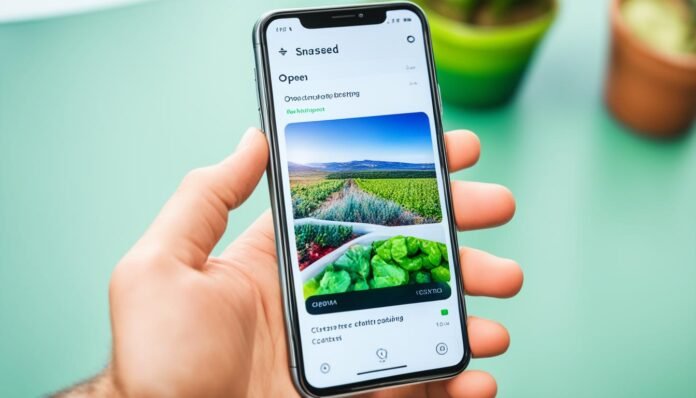
Are you ready to turn your regular photos into stunning art? Snapseed photo editing app is your go-to tool. We’ll show you how to use its editing tools and techniques. These will help you boost your photos’ color, exposure, detail, and composition. This guide is perfect for both beginners and experienced mobile photographers.
Key Takeaways
- Discover how to use Snapseed’s advanced tools and filters to elevate your photos
- Learn techniques to improve color, exposure, and detail for more impactful images
- Explore ways to enhance photo composition and clean up your shots for a professional look
- Understand how to use Snapseed’s selective editing tools for precise adjustments
- Dive into the app’s Looks feature to quickly transform the mood and style of your photos
Introduction to Snapseed Photo Editing
Photo editing is key in mobile photography today. Snapseed is a top app for editing photos. It has many tools and features to make your photos better. Let’s explore Snapseed and see why editing photos is important.
Why Edit Photos?
Editing photos helps match them with your original vision. You can adjust colors, exposure, and details. This makes your images more striking.
Editing lets you fix flaws and make your photos look professional. It’s a way to enhance your work.
Exploring Snapseed’s Interface
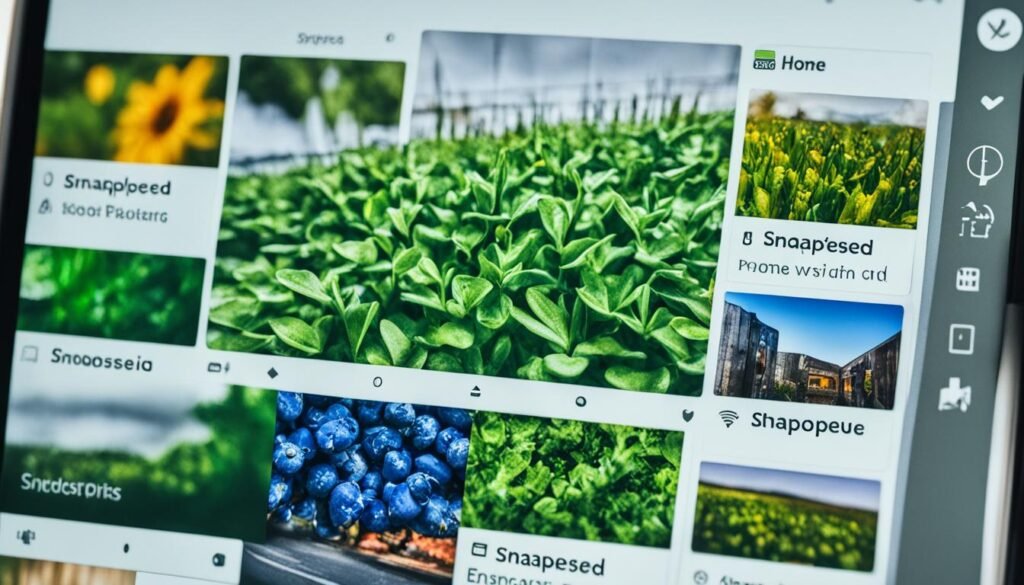
Snapseed has a simple and easy-to-use interface. It’s split into Looks and Tools sections. The Looks section has presets for different styles and moods. The Tools section has many editing options.
| Snapseed Editing Tools Overview | Snapseed Looks Overview |
|---|---|
|
|
Snapseed has many editing tools and presets. It helps you be creative and improve your photos. It’s great for both beginners and experienced photographers. Snapseed makes editing easy and fun.
https://www.youtube.com/watch?v=UzZ1zEdSSdc
Enhance Color, Exposure, and Detail
Snapseed’s editing tools make it simple to boost your photos. You can adjust the color, exposure, and detail easily. Let’s explore three key tools that will make your images look amazing.
Tune Image Tool
The Tune Image tool lets you tweak your photo’s basics. You can adjust the brightness, contrast, saturation, and more. It’s great for making dark shots brighter or adding life to dull ones.
White Balance Tool
Getting the right white balance can be hard, but Snapseed’s tool makes it simple. It helps fix color casts and change your photo’s mood. Try different temperatures to match your vision.
Details Tool
The Details tool is a must for enhancing texture and fine details in your photos. By tweaking structure and sharpening, even plain shots can become stunning.
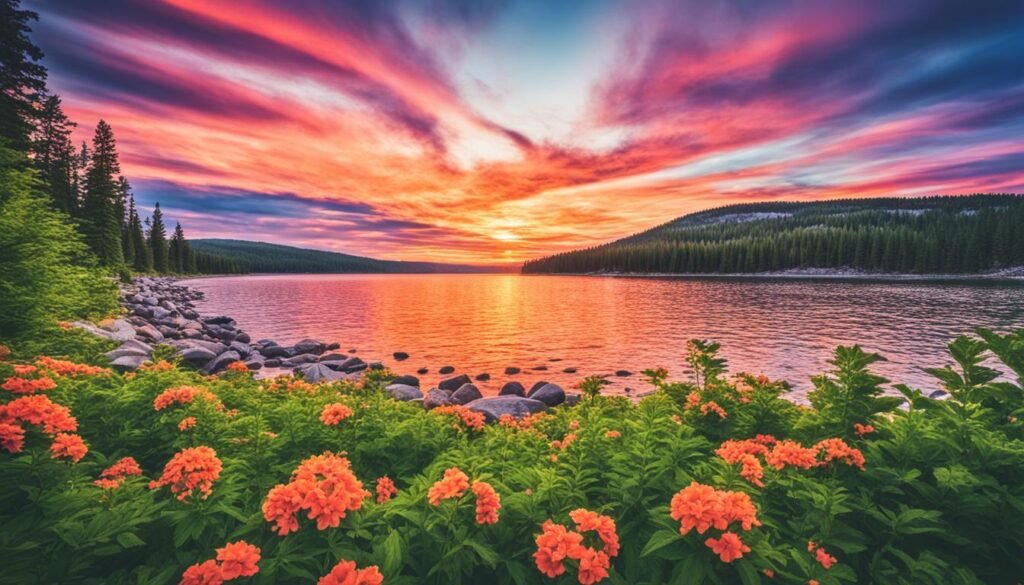
With these tools, you can master Snapseed color editing, Snapseed exposure adjustment, and Snapseed detail enhancement. Get ready to elevate your photography skills!
Modify Individual Edits with Snapseed
Snapseed’s non-destructive editing feature changes the game for photo editing fans. This tool lets you easily change or delete edits on your photos. You get full control over your images, making it easy to fine-tune and experiment until you get the perfect look.
The Snapseed edit history feature gives you this flexibility. By looking at the edit history, you can see what you’ve done and change it if needed. Maybe the contrast adjustment was too much? No worries! Just find that edit in the history and adjust it how you like.
Snapseed non-destructive editing takes it a step further. With selective tools, you can edit certain parts of your image without touching the rest. This is great when you want to change one area of the photo without affecting others. Editing becomes a precise dance, letting you shape your images with great control.
Whether you’re tweaking exposure, colors, or adding creative effects, Snapseed’s editing gives you the power. Explore the app’s easy-to-use interface, try out different tools, and unleash your creativity. Get ready to elevate your photo editing skills!
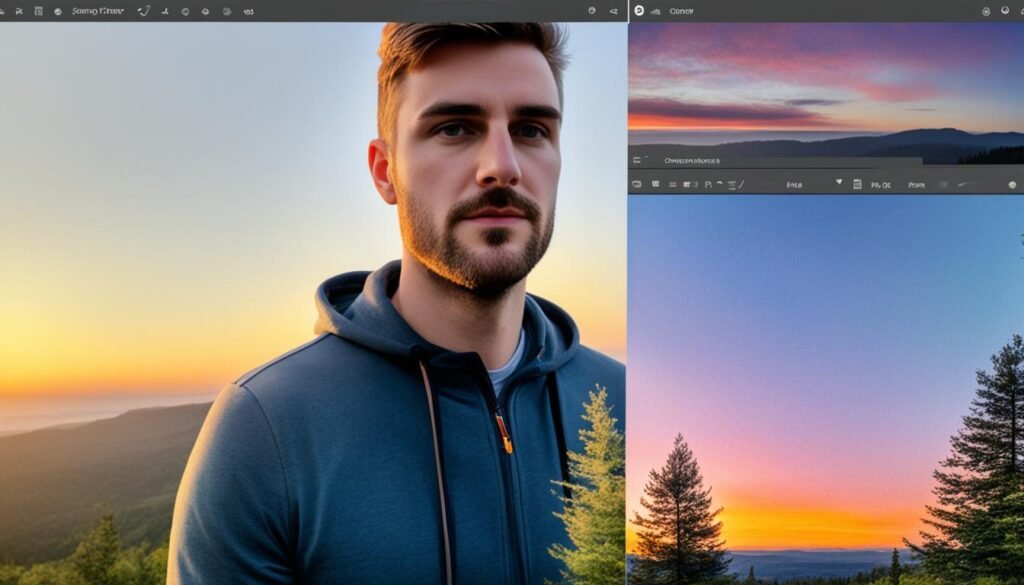
Improve Photo Composition
Composition is crucial for taking great photos. Snapseed has powerful tools to enhance your photo’s framing and perspective. Let’s see how to use the Crop, Rotate, and Perspective tools to make your photos stand out.
Crop Tool
The Crop tool in Snapseed lets you trim your images. It removes distractions and focuses the viewer’s attention on key parts of the scene. With Snapseed cropping, you can try different ratios like 4:3 or 16:9. This ensures your photos look great on any device.
Rotate Tool
A simple Snapseed rotating can change your photo a lot. The Rotate tool helps straighten horizons and fix tilted shots. It also lets you try off-center framing for more interest in your photos.
Perspective Tool
The Perspective tool in Snapseed is great for fixing photo distortions. It straightens lines and aligns buildings for a professional look. With this tool, you can improve photo composition and add depth to your images.
Using Snapseed’s tools can really boost your photography. By getting good with Crop, Rotate, and Perspective, you’ll improve your photo composition. This will help you create beautiful, eye-catching images.
Clean Up Photos for Flawless Edits
Snapseed’s Healing and Portrait tools are great for making your photos look perfect. They can remove things like blemishes, stray hairs, or objects that distract. This makes your photos look professional and polished.
Healing Tool
The Healing tool in Snapseed is great for getting rid of small flaws in your photos. Just pick the tool and brush over the area you want to fix with your finger. Snapseed will then blend the area with the pixels around it, making it almost invisible.
This is really useful for portraits. You can fix skin flaws and make your skin look flawless.
Portrait Tool
The Portrait tool in Snapseed is amazing for a full photo cleanup. It lets you edit specific parts of your image, like the eyes, skin, and hair. You can smooth out skin, make features stand out, and remove things you don’t want in the picture.
This keeps your edits looking natural and realistic. It’s a must-have for professional portrait editing.
Learning to use Snapseed’s Healing and Portrait tools can take your photos to the next level. They’re great for anyone, whether you’re just starting or you’re already a pro. These tools will help you make your images look flawless and stunning.
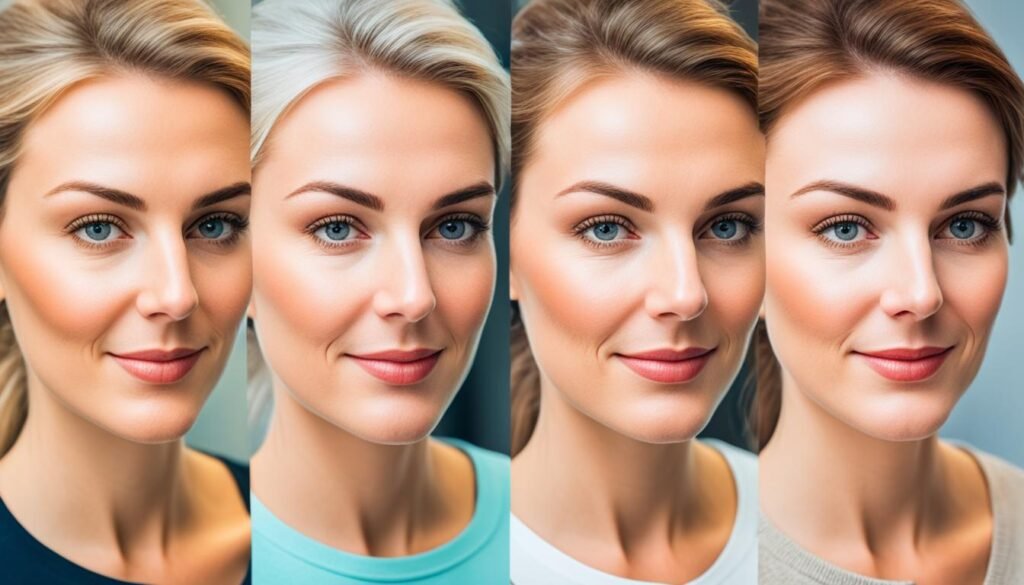
how to edit photos on Snapseed with Selective Editing Tools
Snapseed is a powerful photo editing app with selective tools for precise adjustments. These tools let you fine-tune your photos with ease. Let’s dive into how to use the Brush, Selective, Masking, and Vignette tools for better Snapseed selective editing.
Brush Tool
The Snapseed brush tool changes the game in targeted editing. It lets you apply changes like exposure or saturation to certain parts of your photo. This helps focus on the main subject, improve details, or hide flaws easily.
Selective Tool
The Snapseed selective tool boosts your editing skills. It lets you pick and edit specific parts of your image. Adjust colors, brightness, or contrast of a subject with ease.
Masking Tool
The Snapseed masking tool is great for precise selections in your photos. Use it to isolate subjects or backgrounds and edit them separately. This is great for making changes without affecting the whole image.
Vignette Tool
The Snapseed vignette tool adds depth and drama to your photos. It creates a focus on the center of the frame, making your photos more engaging and interesting.
Snapseed’s selective editing tools give you full control over your photos. Mastering these tools opens up a world of creativity. Your images will become captivating and inspiring.
Change the Mood with Snapseed Filters
Snapseed is more than just editing tools; it also has filters to change your photos’ look and feel. You can pick from dramatic, vintage, or nostalgic styles with Snapseed filters. These Snapseed filter effects let you play with the photo mood of your images.
Snapseed was named iPad App of the Year in 2011 for a reason. It’s packed with creative photo editing tools and filters. Whether you want drama, a vintage look, or something modern, Snapseed has it all.
| Filter Name | Mood and Style | Best Use Case |
|---|---|---|
| Grunge | Moody, Gritty | Gritty Urban Scenes, Abandoned Locations |
| Drama | Dramatic, Cinematic | Portraits, Landscape Photography |
| Vintage | Nostalgic, Retro | Lifestyle, Travel, Food Photography |
Snapseed also lets you adjust tone, brightness, and grain in black and white filters. This means you can make your photos truly unique and match any mood you want.
“Experimentation with blending modes, opacities, and layering in Snapseed can lead to intricate and visually striking double exposure compositions.”
Looking to add moodiness, a vintage look, or drama to your photos? Snapseed’s filters are a great choice. Start exploring and see how you can change your photos and enhance their mood.
Use Looks as a Starting Point
The Snapseed app has a feature called “Looks” that’s great for starting your photo editing. These Looks are pre-made editing presets that change your photos’ look and feel. You can choose from many options, like vintage, bold colors, or a movie-like style.
Apply a Look
To use a Look in Snapseed, go to the “Looks” tab and pick one. Each Look gives a unique style, so try them out until you find the right one for your photo. After picking a Look, Snapseed will instantly change your photo.
Customize a Look
While pre-made Looks are great, Snapseed lets you tweak them to fit your taste. After applying a Look, use the “Tune Image” tool to adjust things like brightness and saturation. This way, you can make your edit truly yours.
Create Custom Looks
If you want more control, Snapseed lets you make your own custom Looks. Use the app’s tools to create a preset that shows off your style. Once it’s ready, save it and use it on future photos, making your Snapseed preset editing easier.
Using Snapseed’s Looks can really change your photo editing game. Whether you’re starting with presets or making your own Snapseed custom looks, this tool opens up new creative doors. It can take your photography to the next level.
Save Your Snapseed Edits
After editing your photos with Snapseed, it’s important to save your work. Snapseed gives you ways to keep your edits and get your photos ready for sharing or later use.
Saving Your Edits
Snapseed makes saving your edits simple. Just tap the “Export” icon in the top right corner after you’ve made your changes. You’ll see options like “Save” and “Save a Copy.” “Save” will update your original photo, and “Save a Copy” will make a new file with your edits but keep the original unchanged.
Exporting Your Photos
Snapseed also lets you export your photos to different places and formats. You can share your images on social media, in messages, or on cloud services like Google Drive or Dropbox. You can also export as JPEG, PNG, or TIFF files for various uses.
It’s key to save your Snapseed edits to keep your style consistent, share your work, and make sure your photos look great. Using Snapseed’s saving and exporting tools means you can always use and enjoy your edited photos.
| Feature | Description |
|---|---|
| Snapseed saving edits | Snapseed offers the “Save” and “Save a Copy” options to preserve your photo edits, either overwriting the original image or creating a new file with your changes. |
| Exporting Snapseed photos | Snapseed allows you to export your edited photos to various platforms and file formats, including social media, messaging apps, cloud storage, and common image file types like JPEG, PNG, and TIFF. |
| Preserving Snapseed edits | Saving and exporting your Snapseed edits is crucial for maintaining a consistent visual style, sharing your work, and ensuring your photos look their best. |
Conclusion
We’ve reached the end of our Snapseed photo editing guide. We’ve shown you many powerful tools to change your mobile photos. Snapseed has features for both new and experienced photographers.
We talked about editing colors, exposure, and details. We also covered how to improve your photo’s composition and clean it up. Snapseed has everything you need.
The techniques we shared let you control your photos exactly how you want. You can use the Tune Image, Brush, and Selective tools for this. Plus, you can add unique filters and customize “Looks” to make your photos stand out.
Keep trying out Snapseed’s tools and find your editing style. Remember, there are endless editing possibilities. Don’t hesitate to be creative with Snapseed’s easy-to-use interface and strong features. Keep practicing and exploring to improve your mobile photography.
FAQ
What is Snapseed and how can it help me edit my photos?
How do I navigate the Snapseed app interface?
How can I use the Tune Image, White Balance, and Details tools to improve my photos?
How do I modify or delete individual edits I’ve made in Snapseed?
What tools can I use in Snapseed to improve the composition of my photos?
How can I use the Healing and Portrait tools to clean up my photos?
What are the Selective Editing tools in Snapseed and how can I use them?
How can I use Snapseed’s filters to change the mood and style of my photos?
How can I use Snapseed’s Looks feature to streamline my editing workflow?
How do I save and export my edited photos from Snapseed?
Source Links
- https://photography-playground.com/snapseed-tutorial/ – Snapseed Tutorial | Photography Playground
- https://www.jorishermans.com/blog/how-to-edit-amazing-photos-with-snapseed – How To Edit Amazing Photos With Snapseed — JORIS HERMANS
- https://iphonephotographyschool.com/snapseed/ – Complete Guide To Using Snapseed To Edit Your iPhone Photos
- https://expertphotography.com/snapseed-tutorial/ – Snapseed Tutorial – How to Use Snapseed for Impressive Edits
- https://www.fredericpaulussen.be/guide-to-editing-photos-in-snapseed/ – The extensive guide to editing your mobile photos in Snapseed
- https://play.google.com/store/apps/details?id=com.niksoftware.snapseed&hl=en_US – Snapseed – Apps on Google Play
- https://olli.fullerton.edu/_resources/pdfs/_spring2023/CLECAT_3-20-2023_SS_Edit.pdf – Snapseed_Ebook_0120.indd
- https://www.mobiography.net/apps/snapseed-app-tutorial/ – Snapseed App Tutorial: A Guide to Photo Editing with Your Smartphone
- https://amateurphotographer.com/technique/photo_editing/how-to-edit-your-photos-on-snapseed/ – How to edit photos with Snapseed – still among the best for smartphones
- https://www.androidauthority.com/snapseed-android-tutorial-1058200/ – Snapseed tutorial: How to edit a photo with your smartphone
- https://cutouthouse.com/how-to-edit-photos-with-snapseed/ – How to Edit Photos with Snapseed – Cut Out House
- https://www.smartphonephotographytraining.com/uncategorised/snapseed-sharpening – 4 Powerful mobile photo sharpening secrets using Snapseed
- https://www.bleachfilm.com/snapseed-presets-enhance-photos-guide – Enhance Your Photos with Snapseed Presets: A Comprehensive Guide
- https://shotkit.com/snapseed-beginners-guide/ – Snapseed: Ultimate User Guide + Tips (2024 Update)
- https://s3.amazonaws.com/member.photzy.com/Free/Snapseed.pdf – PDF
- https://filmora.wondershare.com/more-tips/snapseed-photo-editing.html – A Beginner’s Guide to Use Snapseed Photo Editing Features
- https://www.makeuseof.com/tag/how-to-use-snapseed/ – How to Use Snapseed: 10 Tips for Better Snapseed Photo Editing
- https://photzy.com/snapseed-the-perfect-tool-for-the-reluctant-post-processor/ – Snapseed: The Perfect Tool for the Reluctant Post-Processor | Photzy
- https://dashkitten.com/wp-content/uploads/2021/11/Snapseed-Tutorial-from-Dash-Kitten-©-1-1.pdf – Snapseed Tutorial pdf
- https://it-s.com/how-to-use-snapseed-double-exposure-to-create-artistic-masterpieces/ – How to Use Snapseed Double Exposure to Create Artistic Masterpieces – ITS
- https://kellywirht.com/updates/2018/8/19/how-to-use-snapseed-to-edit-photos-on-your-phone – How to Use SnapSeed to Edit Photos on Your Phone — Kelly Wirht
- https://blog.daisie.com/mobile-photography-ultimate-snapseed-guide/ – Mobile Photography: Ultimate Snapseed Guide
- https://medium.com/photo-dojo/snapseed-the-photography-beginners-bestfriend-939eb7e46cb6 – Snapseed — the photography beginner’s bestfriend
- https://thesololife.com/how-to-use-snapseed-for-instagram-worthy-photos/ – How to Use Snapseed for Instagram Worthy Photos – The Solo Life
- https://www.pentaxforums.com/articles/photo-articles/snapseed-tutorial-for-beginners.html – Mobile Photo Editing: Snapseed for Beginners
- https://medium.com/@ghazankhan.blogger/exploring-snapseed-a-comprehensive-guide-to-photo-editing-excellence-7354851f5182 – Exploring Snapseed: A Comprehensive Guide to Photo Editing Excellence
- https://www.cnet.com/reviews/snapseed-review/ – Snapseed for Android review: The photo editor for serious photo enthusiasts