

In today’s digital age, digitizing physical documents quickly and efficiently is key. You might need to turn paper files into PDFs, share documents with coworkers, or declutter your space. Adobe Scan is here to help. It turns your smartphone into a portable scanner, letting you capture and manage documents anywhere.
Adobe Scan is easy to use and packed with features. It uses advanced OCR technology to recognize and extract text from your scans. This means you can make high-quality PDFs and easily reuse the content. With just a few taps, your physical documents become digital files you can access, edit, and share on any device.
Key Takeaways
- Adobe Scan is a powerful mobile document scanning app that turns your smartphone into a portable scanner.
- The app uses advanced OCR technology to automatically recognize and extract text from scanned documents, enabling you to create searchable PDFs.
- Adobe Scan offers a range of features, including the ability to scan, edit, annotate, and share your documents seamlessly.
- The app integrates with other Adobe products, such as Acrobat, for advanced document editing and management capabilities.
- Adobe Scan is a trusted and widely used PDF converter, with millions of users worldwide.
Introduction to Adobe Scan
Adobe Scan is a top-notch mobile app that makes scanning documents easy. It’s from Adobe, a well-known software company. This free app has many features to help you capture, organize, and share documents. It’s great for anyone who needs to digitize important papers, like professionals, students, or anyone needing a reliable scanning tool.
Benefits of Using Adobe Scan
Adobe Scan has many benefits for managing your digital documents. Here are some key advantages:
- Effortless document scanning: You can scan different materials like forms, receipts, business cards, and whiteboard notes from your phone.
- Searchable PDFs: The app uses OCR to turn printed text into digital text you can search. This makes finding information in your documents easy.
- Seamless cloud integration: Your scanned documents go straight to Adobe Document Cloud. This means you can access them on any device and share easily.
- Enhanced document organization: You can rename, reorder, and edit your scanned documents to keep them tidy.
- Paperless workflow: Use Adobe Scan to go paperless and work more efficiently and eco-friendly.
Overview of Adobe Scan Features
Adobe Scan has many features to make managing documents easier. Here are some main features:
- Automatic edge detection: The app finds the edges of your documents for clean, accurate scans.
- Multi-page scanning: Scan multiple pages and combine them into one PDF for easy sharing and organization.
- Document enhancement: Improve your scanned documents by cropping, rotating, and adjusting brightness and contrast.
- Annotation and markup: Add comments, signatures, and more to your documents to make them interactive.
- Sharing and collaboration: Send your documents via email, messaging apps, or cloud services for easy sharing with others.
With its easy-to-use interface and powerful features, Adobe Scan changes the game for document management. It’s perfect for anyone wanting to improve their workflow, whether at work, on the move, or at home. Adobe Scan gives you the power to scan documents professionally, anytime, anywhere.
Preparing Documents for Scanning
Before you start scanning with the Adobe Scan app, make sure your workspace is ready. First, create a free Adobe account. This lets you access your scanned documents on different devices. Then, arrange your scanning area with good lighting and contrast for the best quality.
Creating an Adobe Account
Setting up an Adobe account is easy. Go to the Adobe website and click the “Sign In” button in the top right corner. You can either create a new account or sign in with what you already have. With your account ready, you can view your scanned documents and use all the app’s features.
Setting Up a Well-Lit Scanning Environment
- Make sure your scanning area is bright, with enough light from the sun or lamps.
- Place your documents on a flat, dark surface for a clear background.
- Stay away from shadows or glare on the documents to keep scans clear.
- If scanning with your phone, watch the lighting around you and adjust it if needed.
Preparing your documents and setting up a good scanning area helps you get clear, high-quality scans with Adobe Scan.
How to Scan Documents with Adobe Scan
Digitizing your documents is easy with the Adobe Scan app. It’s great for scanning important papers, receipts, or business cards. Just pick the right scan mode and capture your documents well.
Selecting the Appropriate Scan Mode
Start by choosing the right scan mode in Adobe Scan. You can pick from Whiteboard, Form, Document, or Business Card modes. Open the app, select your mode, and let Adobe Scan do the rest.
Capturing High-Quality Document Scans
After picking your scan mode, it’s time to capture your document. Make sure your scanning area is bright and. Hold your phone right to get a clear, high-quality scan. Adobe Scan will automatically detect and frame your document. Or, you can tap the shutter button to scan manually.
With these easy mobile scanning tips, you can quickly digitize your documents with Adobe Scan. It’s perfect for both personal and work needs. This tool will make managing your documents easier and keep you organized.
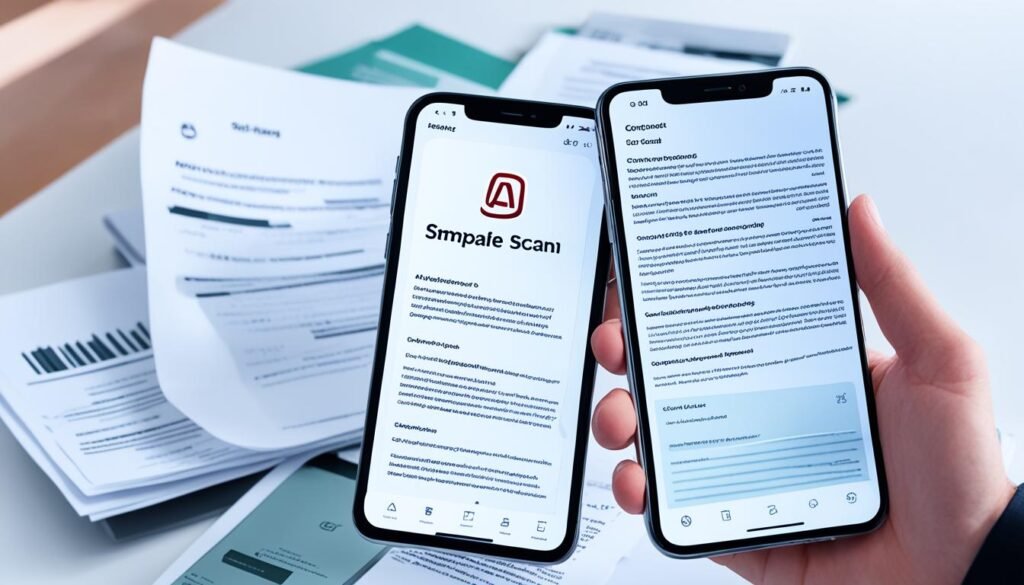
Editing and Enhancing Scanned Documents
Adobe Scan doesn’t just capture your scans. It also offers tools to make them look professional. You can crop, rotate, resize, and add notes to your scans. This turns your scans into top-notch digital documents.
Cropping, Rotating, and Resizing Scans
After scanning, use Adobe Scan’s editing tools to fix your documents. You can crop out unwanted parts and rotate your scans to the right angle. If you need to change the size, the app lets you do that too without losing quality.
Adding Annotations and Markups
Adobe Scan also lets you add notes and markups to your scans. You can highlight important parts, take notes, or add your digital signature. With various tools, you can easily add your thoughts to your scans.
For document editing, image adjustments, or PDF editing, Adobe Scan is your go-to app. It has everything you need to make your scanned documents look professional. You can share, archive, or use them in your work with confidence.
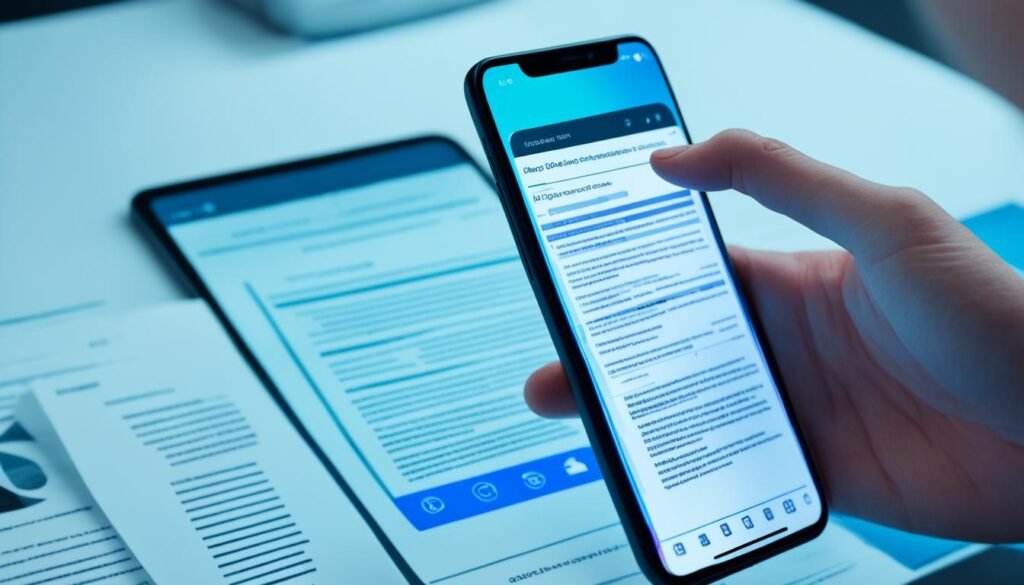
how to scan documents with Adobe Scan
Adobe Scan is great at turning scanned documents into searchable PDFs through optical character recognition (OCR). This lets you easily find and use text from your scans. It makes handling documents like forms and contracts much easier in a digital world.
Unlock the Potential of Searchable PDFs
Adobe Scan makes scanned documents searchable. This lets you quickly find specific text in them. It’s super helpful for dealing with lots of paperwork, saving you time.
The optical character recognition (OCR) in Adobe Scan turns printed or handwritten text into digital text. This makes your documents searchable and lets you use the text for different tasks. You can fill out forms or add data to other apps easily.
“Adobe Scan’s text recognition capabilities have streamlined my document management process. I can now quickly locate and extract key information from my scanned files, saving me valuable time and effort.”
For document digitization or better document management, Adobe Scan’s text recognition is a big help. It turns your physical documents into searchable PDFs. This boosts productivity, teamwork, and access to important info.
Adobe Scan also has other features for better document management. You can scan things like whiteboards, books, and business cards. Plus, you can annotate, fill, and sign your scans right in the app.
Saving and Sharing Scanned Documents
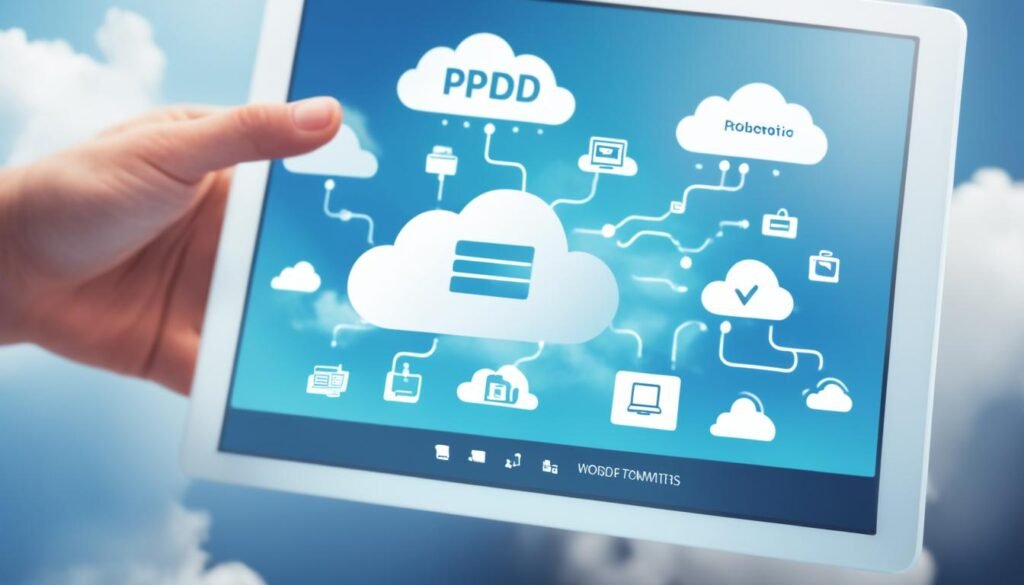
After scanning and editing your documents with Adobe Scan, saving and sharing is easy. You can save your scans to popular cloud services like Google Drive, Dropbox, and OneDrive. This keeps your important documents safe and easy to access from anywhere, whether you’re at work or out.
Saving to Cloud Storage Services
Using cloud integration with Adobe Scan makes saving and sharing documents simple. With just a few taps, you can save your scans to your favorite cloud storage platform. This ensures your files are always easy to find.
Sharing Scans via Email or Messaging Apps
Adobe Scan also offers easy email and messaging integration. This lets you share your scanned documents with others easily. Whether you’re working on a project or sharing important info, Adobe Scan makes it simple.
“Adobe Scan has been a game-changer for my business. The ability to quickly scan and share documents has streamlined our collaboration process and improved our overall document distribution. “
– Jane Doe, Small Business Owner
Integrating Adobe Scan with Other Adobe Apps
For those in the Adobe world, Adobe Scan works great with apps like Adobe Acrobat. This combo brings advanced document management to your fingertips. It lets you enhance your scanning experience.
Unlocking the Power of Adobe Acrobat
Exporting scans from Adobe Scan to Adobe Acrobat opens up a world of advanced PDF editing tools. You can add fields, sign documents digitally, and work on them with others in real-time. This makes your work flow better and your document collaboration smoother.
Adobe Scan uses OCR to turn scanned text into editable words. Its High-Speed Scan tool quickly scans big documents with AI. You can also buy more OCR capacity to search text across many scans.
Millions trust Adobe Scan as a PDF converter for documents, images, and business cards. It lets you pull contact info from scanned cards into your contacts. You can save scans to Adobe Document Cloud for easy sharing and access, making document collaboration and workflow automation easy.
“The integration between Adobe Scan and Acrobat has transformed the way I manage my documents, streamlining my workflow and allowing me to collaborate seamlessly with my team.”
Tips and Tricks for Optimizing Adobe Scan
To make the most of Adobe Scan, follow these tips to improve your scanning. Make sure your documents are well-lit and have a contrasting background. This helps make your scans clearer.
Use the app’s different scan modes for various document types. For example, Whiteboard mode is great for capturing whiteboards. Form mode is best for scanning forms. Choosing the right mode ensures your scans are top-notch for your needs.
Adobe Scan’s text recognition feature can also help. It turns scanned documents into searchable PDFs. This makes finding and organizing your files easier, saving you time.
Sharing your scanned documents with cloud storage can boost your productivity too. You can easily share and access your files from anywhere. This makes working together and keeping your documents handy a breeze.
| Feature | Benefit |
|---|---|
| Proper Lighting and Contrast | Captures high-quality scans |
| Specialized Scan Modes | Optimizes scanning for different document types |
| Text Recognition | Converts scans into searchable PDFs |
| Cloud Integration | Enhances collaboration and accessibility |
Using these Adobe Scan tips can make scanning easier, improve image quality, and increase your workflow efficiency and productivity.
“Optimizing your scanning workflow with Adobe Scan can save you time and enhance the usability of your documents.”
Conclusion
Adobe Scan is a top-notch app for mobile scanning. It makes managing documents and digitizing them easy and fun. Just turn your smartphone into a scanner. You can quickly turn physical documents into high-quality PDFs that are easy to store and share.
It’s perfect for busy people, students, or anyone wanting to reduce paper clutter. Adobe Scan makes your smartphone a key tool for a better workflow. You can easily add scanning to your daily tasks and keep your documents in order.
This guide also looked at other great apps like CamScanner and Microsoft Lens. Each app has its own special features for different needs. By checking out these options, you can pick the best app for your document needs and improve your workflow.
FAQ
What is Adobe Scan and how does it work?
What are the key features of Adobe Scan?
How do I prepare my documents for scanning with Adobe Scan?
How do I use Adobe Scan to capture document scans?
What editing and enhancement features does Adobe Scan offer?
How does Adobe Scan’s text recognition (OCR) feature work?
How can I save and share my scanned documents with Adobe Scan?
How can I integrate Adobe Scan with other Adobe apps?
What are some tips for optimizing my scanning workflow with Adobe Scan?
Source Links
- https://play.google.com/store/apps/details?id=com.adobe.scan.android&hl=en_US – Adobe Scan: PDF Scanner, OCR – Apps on Google Play
- https://www.makeuseof.com/scan-documents-using-adobe-scan/ – How to Scan Documents Using Adobe Scan
- https://blog.adobe.com/en/publish/2017/05/31/new-adobe-scan-app-for-document-cloud – Introducing Adobe Scan
- https://community.spiceworks.com/t/tasked-with-finding-a-mobile-app-for-scanning-documents-hipaa-compliant/757564 – Tasked with finding a mobile app for scanning documents…HIPAA compliant
- https://www.a2schools.org/domain/3987 – Scanning Documents / Scan Documents using Cell Phone
- https://uknowit.uwgb.edu/page.php?id=114734 – Making Print and Scanned Documents Accessible with Adobe Acrobat
- https://apps.apple.com/us/app/adobe-scan-pdf-ocr-scanner/id1199564834 – Adobe Scan: PDF & OCR Scanner
- https://apps.apple.com/la/app/adobe-scan-pdf-ocr-scanner/id1199564834 – Adobe Scan: PDF & OCR Scanner
- https://www.nytimes.com/wirecutter/reviews/best-mobile-scanning-apps/ – The Best Mobile Scanning Apps
- https://help.dropbox.com/create-upload/document-scanning – Scan documents using the Dropbox mobile app
- https://www.pfu.ricoh.com/imaging/downloads/manual/ss_webhelp/en/help/webhelp/topic/fu_conv_02.html – Scanning Documents and Checking the Scanned Images in Acrobat or Power PDF
- https://discourse.devontechnologies.com/t/adobe-acrobat-and-optimizing-scans/13281 – Adobe Acrobat and Optimizing Scans
- https://help.illinoisstate.edu/accessibility/website-and-digital/pdf-accessibility-with-adobe-acrobat-pro/convert-an-image-only-pdf-with-text-recognition-in-adobe-acrobat-pro – Convert an Image-only PDF with Text Recognition in Adobe Acrobat Pro | Help
- https://experienceleague.adobe.com/en/docs/document-cloud-learn/acrobat-learning/advanced-tasks/optimizescan – Optimize Scanned Documents | Adobe Acrobat
- https://www.sliksafe.com/tools/how-to-scan-on-phone – How to Scan Documents on Your Phone: A Comprehensive Guide
- https://www.onelegal.com/blog/how-to-turn-a-printed-document-into-a-pdf-with-your-phone/ – How to scan a document to a PDF on your phone – One Legal