
Storing more data on our iPhones is a growing need. The latest iOS 16 update offers new tools to manage storage better. You can free up space without losing your favorite apps and data, no matter your iPhone model.
In this article, I’ll show you how to manage your iPhone’s storage well. This way, you can keep all your favorite memories, apps, and documents. We’ll cover ways to optimize photo and video storage, manage app downloads, and clear caches. Your iPhone will stay powerful and reliable.
Key Takeaways
- Use iCloud Photo Library to save space and keep your photos safe.
- Offload unused apps to free up space while keeping your data and documents.
- Store media files in the cloud with services like iCloud or Google Photos.
- Find and delete duplicate files and documents to clean up your iPhone’s storage.
- Clear your browser cache regularly to save space and speed up browsing.
Understanding iPhone Storage Capacity
Storage capacity is key when choosing an iPhone. With new features and high-quality media, our devices need more space. You can pick from 64 GB, 128 GB, 256 GB, or 512 GB of storage, depending on your needs.
Check out iPhone storage options to find the right fit for you.
Factors Influencing Storage Usage
Several things can affect how much storage your iPhone uses. The iOS operating system takes up some space, leaving less for you. High-quality cameras, 4K video, and storing photos and documents in the cloud also use up space.
Default Storage Options on iPhone Models
- Every iOS device comes with about 5 GB of free iCloud storage for your data.
- Syncing data like reminders, calendars, and contacts to iCloud can help save space on your iPhone.
- iCloud backup supports many types of data, including app data, Apple Watch backups, and photos.
| iPhone Model | Storage Options |
|---|---|
| iPhone 14 | 128 GB, 256 GB, 512 GB |
| iPhone 13 | 128 GB, 256 GB, 512 GB |
| iPhone 12 | 64 GB, 128 GB, 256 GB |
Knowing about storage options and managing your iCloud and iPhone storage well can keep your device running smoothly. This way, you can avoid lag and keep your storage at its best.
Checking Your Current Storage Usage
It’s important to keep an eye on your iPhone’s storage to avoid running out of space. This ensures you have room for your photos, files, and apps. By regularly checking your iPhone storage usage, you can see how your storage is being used. This helps you make smart choices to free up space when needed.
The Storage section in your iPhone’s Settings app gives a detailed breakdown of your storage usage. It shows how much space is used by Apps, Photos, Media, and more. This helps you find out which areas use the most space. You can then take steps to clear out space.
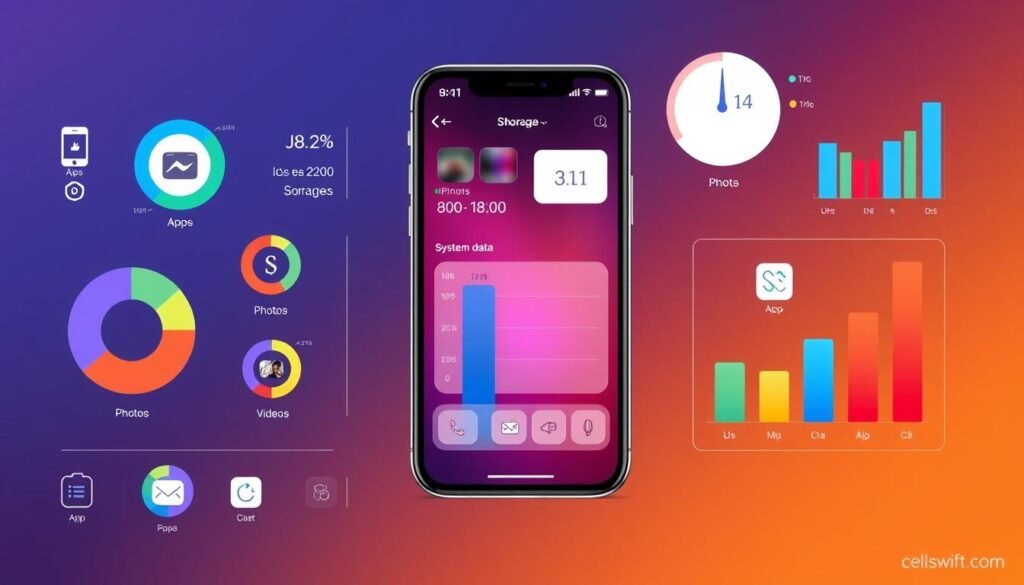
For a closer look, tap on the storage breakdown to see a bar graph. It shows the total usage and how much each app and feature uses. This info is key to understanding your storage habits. It helps you decide which files, apps, or data to remove or optimize.
Even though iOS limits what apps can do, you can still use apps like DiskSpace for a basic overview. You can also connect your iPhone to a computer with iTunes or Finder. This gives you a detailed view of your storage, making it easier to manage your device’s space.
Regularly checking your iPhone storage usage is key to keeping your device organized. By knowing how your storage is used, you can choose what to keep or remove. This keeps your iPhone running smoothly and has enough space for your important stuff.
Optimizing Photo Storage
As an avid iPhone user, I’ve noticed photos and videos take up a lot of space. Apple has given us tools to keep our memories safe without deleting everything. This way, I can keep my favorite moments without losing other important stuff.
Enabling iCloud Photo Library
Using the iCloud Photo Library is a great way to manage storage. It stores my photos and videos in the cloud, keeping smaller versions on my iPhone. This freed up 28.88GB of space, which is like having 5,000 songs or 25 movies.
Adjusting Image and Video Settings
I can also save space by changing my image and video settings. My iPhone lets me take photos in a smaller format and record videos at lower resolutions. For example, a minute of 4K video at 60fps uses about 400MB, so choosing a lower quality helps a lot.
Getting full-resolution photos from iCloud needs a strong internet connection. If I run out of iCloud space, I might see a “iCloud Storage Is Full” message. But, iCloud storage plans start at just $1 a month for 50GB, so I can easily get more space.
By tweaking my photo and video settings and using iCloud, I’ve saved a lot of space on my iPhone. I get to keep my memories in high quality without taking up too much room. It’s great for my device and my photos.
Managing App Downloads and Caches
One way to get more space on your iPhone is to manage app downloads and caches. Apps like Netflix, YouTube, and Spotify let you download content for offline use. But, this can use up a lot of your device’s storage.
Removing Offline Content from Streaming Apps
To free up space, follow these steps:
- Go to Settings > General > iPhone Storage.
- Find the app with offline content, like Netflix or Spotify.
- Look for the “Downloads” section under the app’s storage. Swipe left on any files you want to delete and tap “Delete” to remove them.
By regularly deleting offline content, you can manage app downloads and get more space on your iPhone.
Also, think about clearing app caches to free up more space. Apps like Instagram can have big caches that take over 10GB of storage. Clearing these caches can make a big difference in your iPhone’s storage.
“Deleting apps with large caches like YouTube and Instagram can help reduce the space taken up by applications, indicating the impact of cache sizes on storage usage.”
Remember, removing offline content and clearing app caches are good ways to manage your iPhone storage without deleting apps you like. By watching your storage and optimizing your device, your iPhone will run better and faster.
Offloading Unused Apps
As an iPhone user, I’m always looking for ways to optimize my device’s storage. Apple introduced the “Offload Unused Apps” feature in iOS 11. It’s been a game-changer for managing my iPhone’s storage.
The beauty of offloading apps is that it removes the app itself but keeps the data. This means I can reinstall the app later without losing my progress or settings. I can offload all third-party apps from the App Store and some Apple apps like TV and Music.
Some apps, like Photos and Safari, can’t be offloaded or deleted. But for the rest, I can offload them manually or set my iPhone to do it automatically.
The automatic offloading feature saves time. But I have to remember to reinstall apps when I need them again. It’s easy to do.
If I have an Apple Watch paired with my iPhone, I can’t delete or offload the Watch and Fitness apps. They’re essential for my wearable device.
The Offload Unused Apps feature has been a lifesaver for freeing up space on my iPhone. It removes apps I don’t use often, keeping my data safe. This lets me offload unused apps and reinstall them later, as needed.
To optimize storage even more, I use the CleanMy®Phone app to declutter my iPhone photos. This frees up a lot of space. The Recently Deleted album also helps me avoid losing photos by accident.
By using these space-saving techniques, I can avoid often offloading and reinstalling apps. This keeps my iPhone running smoothly and my storage well-managed.
Clearing Browser Caches
As an iPhone user, you might notice your device’s storage getting full over time. Deleting apps can help, but there’s another easy step to free up space: clearing your browser caches.
Caches are temporary files your web browser stores to make websites load faster. But these files can add up and take up a lot of space on your iPhone. Clearing your browser cache can help you get that space back.
- Open the Settings app on your iPhone.
- Tap on Safari.
- Scroll down and tap on Clear History and Website Data.
- Confirm your action to clear the cache.
If you use Google Chrome, the steps are a bit different:
- Open the Chrome app.
- Tap on the three-dot menu icon at the bottom of the screen.
- Select History.
- Tap on Clear Browsing Data and choose what to delete.
Clearing your browser caches can help free up storage space on your iPhone, especially if you love browsing the web. It’s a simple way to manage your device’s storage without deleting your favorite apps.
| Benefits of Clearing Cache and Cookies | Risks in Saving Cache and Cookies |
|---|---|
|
|
Clearing your cache and cookies regularly is key to keeping your iPhone running smoothly. Try to do it every month or before making sensitive online transactions.
iPhone storage management
Using Third-Party Storage Management Apps
Have you ever seen the “Storage Almost Full” alert on your iPhone? It’s frustrating. Deleting apps and clearing caches can help, but sometimes we need more. That’s when third-party storage apps become useful.
AnyTrans is a standout app. It’s great for transferring files, downloading media, and managing backups on macOS and iOS. Its easy-to-use design and smart features make moving data between devices simple.
AnyTrans does more than just manage storage. It helps you:
- Find and delete old backups, messages, and duplicate files that take up space.
- Move media, documents, and other data between your iPhone and other devices, saving space.
- Backup your iPhone fully or choose what to save, keeping your data safe.
If you want to improve your iPhone’s storage, try AnyTrans. It could be the key to keeping your device running smoothly and your storage in check.
| Feature | AnyTrans | Other Third-Party Apps |
|---|---|---|
| Comprehensive Storage Management | ✓ | Limited |
| Seamless Data Transfer | ✓ | Varies |
| Backup and Restore Capabilities | ✓ | Varies |
| User-Friendly Interface | ✓ | Varies |
Utilizing Cloud Storage Services
Managing your iPhone’s storage can be easier with cloud storage services. Options like iCloud and others help you free up space. They let you store files and documents online.
Setting Up iCloud Storage
iCloud gives you 5GB of free storage. You can upload photos and videos to the cloud. This way, your device saves space by storing compressed versions.
You can get more storage by upgrading your iCloud plan. Plans range from 50GB to 2TB. iCloud keeps your data safe with end-to-end encryption. It works on all Apple devices linked to your account.
Alternative Cloud Storage Options
There are other alternative cloud storage options like Google Drive, Dropbox, and Box. They offer free storage and paid plans. MultCloud lets you manage files from different clouds in one place.
When picking a cloud storage service, think about storage, cost, security, and how easy it is to use. Using both local and cloud storage solutions can help you manage your iPhone’s storage well.

Handling Duplicate Files and Documents
When you look through your iPhone’s files and documents, duplicates can pile up. This takes up space you could use for other things. Luckily, there are tools to help you find and deal with these duplicates.
Using Duplicate File Finders
Using a dedicated app to find duplicates is a smart move. Apps like CleanMy®Phone can scan your device fast. They find any duplicate or similar files that waste space.
CleanMy®Phone has an easy-to-use interface. It lets you see the duplicates and choose what to keep or delete. The app also has a safe file recovery feature. This means you won’t lose important files by mistake.
With a duplicate file finder, you can free up a lot of space on your iPhone. Your files and documents will be organized better, without the extra duplicates.
“CleanMy®Phone scans your whole device for duplicates and presents the findings in a neat interface so it’s easy to choose what you wish to get rid of. And if you end up deleting something by mistake, CleanMy®Phone offers a safe file recovery too!”
Using a duplicate file finder regularly helps you handle duplicate files. It makes sure your iPhone has enough space for your important stuff.
Transferring Data Between Devices
In today’s digital world, keeping our iPhones’ storage free can be tough. Luckily, tools like the iCareFone iOS App help us move data between devices. This frees up space on our phones.
Streamlining Data Transfer
iCareFone makes it easy to move photos, videos, contacts, and more between iPhones, Androids, and computers. It works with both USB and WiFi connections, making it simple and quick.
Unlike iCloud’s limited storage, iCareFone is a budget-friendly way to manage your data. It finds and removes duplicate files and app caches. This boosts your iPhone’s speed and storage.
Versatile Data Management
- Easily transfer photos, videos, and other files between your iPhone and computer or other devices
- Compress large files to save storage space without compromising quality
- Remove unnecessary data like app caches and duplicate photos to free up valuable space
- Seamlessly backup and restore your iPhone data, ensuring your important information is secure
Using iCareFone’s data transfer tools lets you manage your iPhone’s storage better. It keeps your device running smoothly without needing constant deletions or upgrades. Its flexibility and affordability make it a great choice for anyone looking to improve their device’s storage.
| Feature | Description |
|---|---|
| Wireless Data Transfer | iCareFone supports both wired (USB) and wireless (WiFi) data transfer between devices, providing flexibility and convenience. |
| Duplicate File Removal | The app’s intelligent search function can quickly identify and eliminate duplicate files, freeing up valuable storage space. |
| App Cache Cleanup | iCareFone can effectively remove unnecessary app caches, further optimizing your iPhone’s storage and performance. |
| Backup and Restore | The app offers seamless backup and restoration capabilities, ensuring your important data is secure and easily accessible. |
With iCareFone, you can make transferring data between devices easier. This improves your iPhone’s storage efficiency and organization.
Conclusion
As we rely more on smartphones, managing their storage is crucial. Keeping an eye on storage helps avoid slow performance and app crashes. Luckily, there are many ways to free up space without losing our favorite apps and data.
Using cloud storage and apps like iCloud and Google Photos helps a lot. These tools make it easy to back up and organize our files. This way, we can keep our iPhones running smoothly.
Staying on top of iPhone storage is essential. Regular checks and clean-ups ensure our devices work well. With these tips, we can keep our iPhones full of useful apps and photos without deleting anything important.
FAQ
How can I free up storage space on my iPhone without deleting anything?
How do I check what’s taking up the most storage on my iPhone?
How can I optimize photo storage on my iPhone?
How do I remove offline content from streaming apps to free up space?
What is the difference between deleting and offloading an app on my iPhone?
How can I clear my browser caches to free up storage?
What are some third-party apps that can help me manage my iPhone storage?
How do I set up iCloud storage to free up space on my iPhone?
How can I find and remove duplicate files on my iPhone?
What are some tools I can use to transfer data between my iPhone and other devices?
Source Links
- https://www.cnet.com/tech/mobile/clear-your-iphone-storage-with-these-easy-tricks/ – iPhone Storage Running Low? Check Out These Tips to Save Space
- https://www.gophermods.com/8-tips-to-keep-your-iphones-storage-free/ – 8 Tips to Keep Your iPhone’s Storage Free
- https://mobiletrans.wondershare.com/iphone-tips/icloud-storage-and-iphone-storage.html – [Detailed] iCloud Storage vs. iPhone Storage: What’s the Difference?
- https://discussions.apple.com/thread/255286600 – Understanding iphone storage – Apple Community
- https://cleanmymac.com/blog/what-is-system-data-iphone – Understanding and managing System Data in iPhone storage
- https://support.apple.com/guide/icloud/check-your-icloud-storage-on-any-device-mm039c13d410/icloud – Check your iCloud storage on any device
- https://www.insanelymac.com/blog/check-iphone-storage/ – How to Check Storage on iPhone (iOS 17)
- https://support.apple.com/en-us/108429 – How to check the storage on your iPhone and iPad – Apple Support
- https://www.techradar.com/phones/iphone/optimize-iphone-storage-explained – Optimize iPhone Storage explained: where your photos go, and how to get them back
- https://www.cnet.com/tech/services-and-software/dont-delete-your-memories-get-more-iphone-storage-by-changing-these-2-ios-settings/ – Don’t Delete Your Memories: Get More iPhone Storage by Changing These 2 iOS Settings
- https://discussions.apple.com/thread/255243693 – iPhone Storage and Applications – Apple Community
- https://www.pcmag.com/how-to/how-to-free-up-space-on-your-iphone-or-ipad – Clear the Clutter: How to Free Up Space on Your iPhone or iPad
- https://www.insanelymac.com/blog/what-are-applications-on-iphone-storage/ – What Are Applications on iPhone Storage & How to Reduce It?
- https://www.idownloadblog.com/2022/01/06/how-to-offload-app-iphone-ipad/ – What is Offload App and how to use it on iPhone, iPad
- https://macpaw.com/how-to/turn-off-offload-unused-apps – How to turn off “Offload Unused Apps’: A step-by-step guide
- https://support.apple.com/en-us/105082 – Clear the history, cache, and cookies from Safari on your iPhone, iPad, or iPod touch – Apple Support
- https://www.zdnet.com/article/how-to-clear-cache-on-iphone-and-why-you-should/ – How to clear the cache on your iPhone (and why you should)
- https://helpcenter.trendmicro.com/en-us/article/tmka-20583 – Clear Cache & Cookies on iPhone & iPad: Step-by-Step Guide
- https://macpaw.com/how-to/clear-storage-on-iphone – How to clear space on iPhone when your storage is full
- https://support.google.com/photos/answer/9284827?hl=en&co=GENIE.Platform=iOS – Manage your storage – iPhone & iPad
- https://support.apple.com/en-ke/guide/iphone/iphe9aff429a/ios – Transfer files from iPhone to a storage device, a server, or the cloud
- https://www.multcloud.com/tutorials/icloud-storage-vs-iphone-storage-1207-gc.html – iCloud Storage vs iPhone Storage: What’s the Difference
- https://www.cloudwards.net/best-cloud-storage-for-iphone/ – Best Cloud Storage for iPhone 2024: Backup Apps & Photos
- https://scot-comp.co.uk/enhancing-iphone-storage-without-deleting-memories/ – Enhancing iPhone Storage without Deleting Memories
- https://setapp.com/how-to/free-up-space-on-iphone – Easy ways to free up space on iPhone or iPad without deleting anything
- https://www.linkedin.com/pulse/solved-6-ways-transfer-data-between-iphones-without-icloud-puck-kcwac – [Solved] 6 Ways to Transfer Data Between iPhones Without iCloud
- https://techcabal.com/2024/09/19/how-to-transfer-data-from-one-iphone-to-a-computer-ios-17-18-supported/ – How to Transfer Data from One iPhone to a Computer? | iOS 17/18 Supported | TechCabal
- https://benchmarkreviews.com/top-methods-to-check-storage-on-iphone-and-ipad/ – Comprehensive Guide to iPhone and iPad Storage Management
- https://mepis.org/understanding-and-managing-system-storage-in-iphone/ – Understanding and Managing System Storage in iPhone
- https://mendmyiphone.co.uk/10-simple-tips-to-free-up-space-and-improve-iphone-storage/ – 10 Tips to Optimize iPhone Storage and Free Up Space